
TobenONE 18-in-1 DisplayLink Docking Station 4 Monitor with 4 HDMI
4.5Editor score
Four HDMI ports for quad 4K
180W power adapter included
Supports up to four displays
This guide compares the top 10 docking stations with quad monitor support for professionals needing multi-screen setups on Mac and Windows laptops in 2026.
Finding a reliable docking station with quad monitor support is essential for professionals who need extensive screen real estate. These devices transform a single laptop port into a full workstation, enabling seamless multitasking across multiple displays. Choosing the right one ensures compatibility with your laptop and supports high-resolution outputs without performance drops.
We evaluated ten top-rated models based on port variety, display capabilities, power delivery, and overall build quality. Our analysis focuses on devices that support four external monitors simultaneously while maintaining stable connections and fast data transfer rates. This list covers a range of options from budget-friendly to premium enterprise-grade solutions.
Each pick in this guide highlights key strengths, ideal use cases, and potential limitations to help you make an informed decision. Prices and availability can change frequently, so verify current details before purchasing. We recommend checking user reviews and technical specifications to ensure the dock meets your specific workflow requirements.
4.5Editor score

4.7Editor score
4.0Editor score
This table compares all ten selected docking stations side by side, highlighting their key specifications such as port count, display support, and power delivery to help you find the perfect match for your workstation.
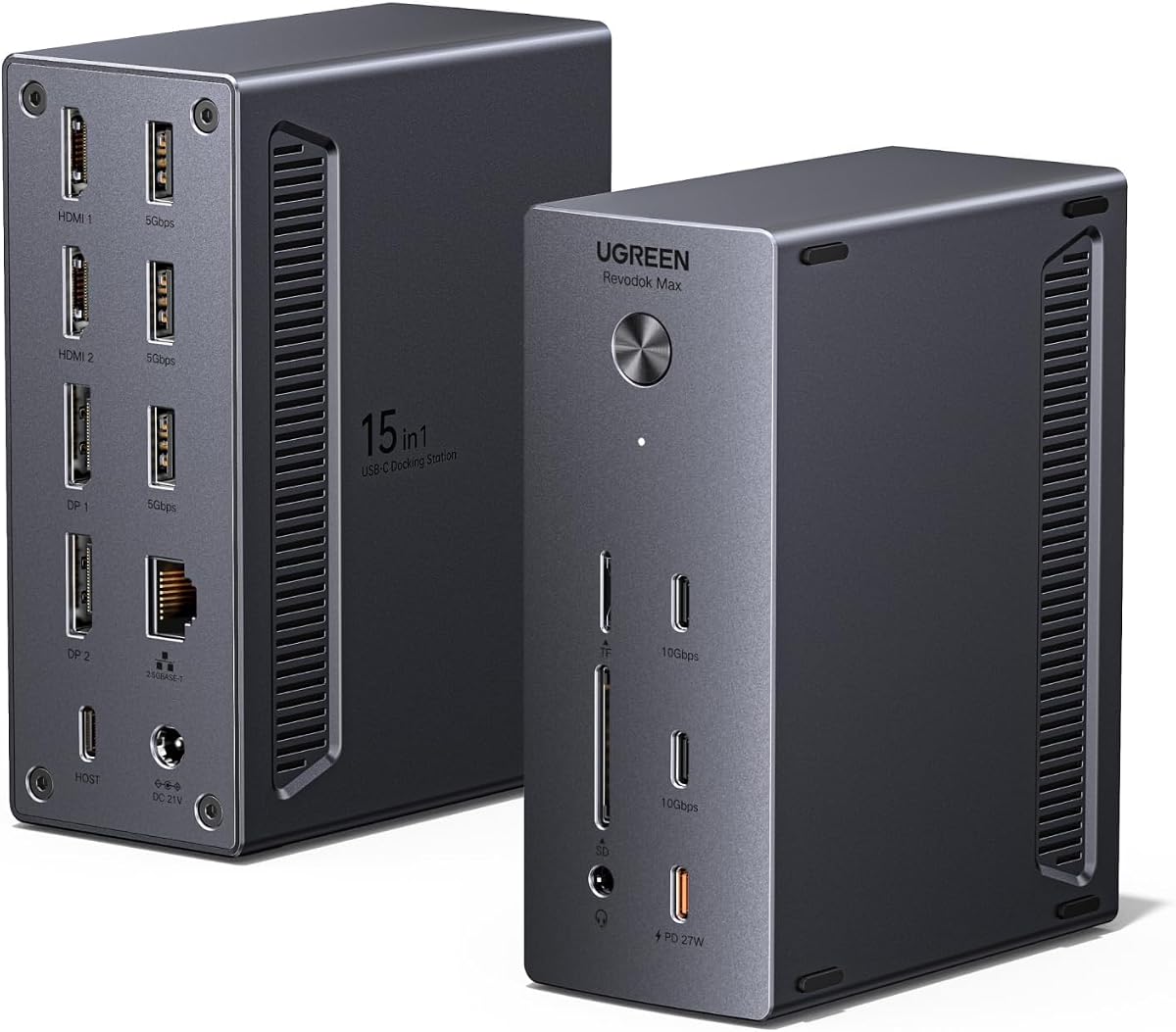

The UGREEN USB-C DisplayLink Docking Station is a top contender for professionals needing flexible multi-monitor setups. With a 4.6 rating, it offers extensive connectivity options including 2 HDMI and 2 DP ports. Its ability to support up to 8K on single displays makes it a powerful choice for creative workflows.
We may earn a commission when you buy through this link, at no additional cost to you.
This dock features 15 ports total, including USB-C and USB-A data transfer, SD/TF card readers, and 2.5GbE Ethernet. The 150W adapter provides up to 100W to the host laptop while simultaneously charging a phone via a dedicated PD-Out port. This dual charging capability keeps your desk clutter-free and your devices powered throughout the day.
However, driver installation is required for full functionality, which may be a hurdle for some users seeking instant plug-and-play. Additionally, when using the PD-Out port at 15W or more, host charging drops to 85W, which might affect high-power laptops under heavy load. These trade-offs are acceptable given the extensive port selection and high resolution support.
Recommend this dock for users who need maximum flexibility in display configurations and connectivity. It is ideal for video editors, analysts, and anyone needing multiple high-resolution screens. Ensure your laptop supports USB 3.2 10Gbps for optimal performance and verify driver compatibility before purchasing.
The dock supports one display up to 8K at 60Hz via DP, enabling ultra-sharp visuals for design work.
Dynamic power sharing ensures both laptop and phone can charge simultaneously without needing extra adapters.
We may earn a commission when you buy through this link, at no additional cost to you.
The TobenONE 18-in-1 DisplayLink Docking Station offers exceptional connectivity with 18 ports including four HDMI outputs. Rated at 4.5 stars, it is designed to expand your workspace significantly. It supports up to four external displays on Windows laptops, making it a robust solution for multi-screen productivity.
We may earn a commission when you buy through this link, at no additional cost to you.
This dock includes a 120W power adapter capable of delivering up to 100W to your laptop. You can also charge your phone via front USB-C ports with 18W charging. The presence of Ethernet and audio ports ensures you have all essential connections for a complete workstation setup without additional dongles.
While excellent for Windows users, macOS support is limited to three displays, which may restrict multi-screen workflows for Mac users. Additionally, the requirement for DisplayLink driver installation is common but adds a setup step. These limitations are minor considering the extensive port availability and strong performance on supported systems.
Ideal for Windows-based professionals requiring multiple HDMI connections for various monitors. It suits traders, developers, and creative professionals who need extensive screen real estate. Ensure your laptop is compatible with DisplayLink and check macOS restrictions if using a Mac device.
Eighteen ports allow connection of keyboards, mice, drives, and more without sacrificing display outputs.
The included adapter simplifies your desk by charging both laptop and peripherals through one power source.
We may earn a commission when you buy through this link, at no additional cost to you.
The StarTech Thunderbolt 5 Universal Docking Station is a premium solution for high-performance workflows. With a 4.7 rating, it delivers true driverless plug-and-play performance across macOS and Windows. Its Thunderbolt 5 support ensures the fastest data transfer and display connectivity available today.
We may earn a commission when you buy through this link, at no additional cost to you.
This dock supports up to four extended 4K 60Hz displays on Windows and dual 6K on MacBook Pro models. The 140W Power Delivery keeps your laptop charged while connecting multiple peripherals. Security features like K-slot and Nano lock protect equipment in shared environments, making it ideal for enterprises.
While expensive compared to other options, its reliability and enterprise-grade security features justify the cost. The requirement for Thunderbolt 5 hosts to maximize performance may limit compatibility with older laptops. However, future-proofing with Thunderbolt 5 ensures longevity and top-tier performance.
Recommended for enterprise users and professionals needing secure, high-performance multi-monitor setups. It suits IT departments managing fleets of laptops and creatives requiring flawless display performance. Verify your laptop's Thunderbolt 5 compatibility before purchase to unlock all features.
Integrated security slots and thorough testing ensure consistent behavior in shared and public workspaces.
Support for dual 6K on Apple Silicon provides incredible resolution and color accuracy for creative work.
We may earn a commission when you buy through this link, at no additional cost to you.
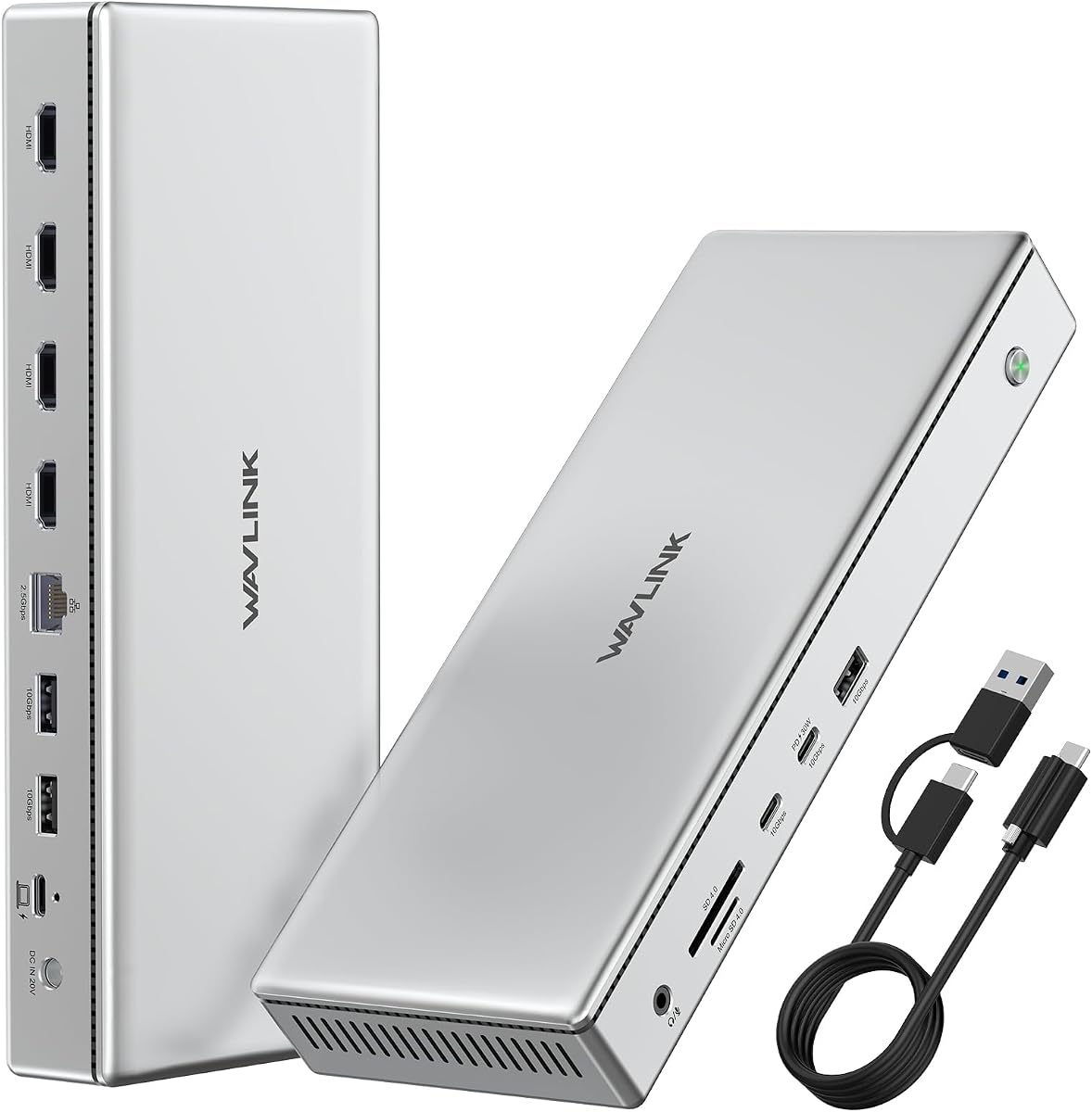
The WAVLINK Pro Docking Station is designed to overcome Mac display limitations using DisplayLink technology. Rated at 4.0, it provides four 4K HDMI outputs at 60Hz via DisplayLink DL7400. This makes it a top choice for Mac users needing quad-monitor setups for trading or coding.
We may earn a commission when you buy through this link, at no additional cost to you.
This all-in-one dock features 15 ports including 2.5G Ethernet, five USB 3.2 ports, and dual USB-C PD ports. The included 160W adapter charges your laptop up to 100W while also charging mobile devices. Its durable aluminum housing aids heat dissipation, ensuring stable performance during extended use.
Although it offers great versatility, Mac users can only use four displays total including their laptop screen. Additionally, driver installation is necessary for full functionality. These trade-offs are reasonable given the unique ability to expand Mac display capabilities beyond standard hardware limits.
Ideal for Mac and Windows users needing four external 4K monitors without Thunderbolt daisy chaining. It suits developers and analysts requiring extensive screen space. Ensure your laptop is USB-C or Thunderbolt compatible and download the DisplayLink driver for setup.
DisplayLink technology allows four 4K HDMI outputs even on Macs with limited native display support.
The combination of Ethernet, USB, and card readers provides all essential connections for a complete desktop.
We may earn a commission when you buy through this link, at no additional cost to you.
The TobenONE DisplayLink Docking Station provides versatile display options for both Mac and Windows users. With 18 ports and support for triple or quad 4K@60Hz monitors, it enhances multitasking significantly. Its 4.4 rating reflects reliable performance across various professional workflows.
We may earn a commission when you buy through this link, at no additional cost to you.
This dock includes a 120W power adapter that charges your laptop up to 100W. It features multiple HDMI and DP ports allowing various display combinations for seamless extension. The 10Gbps data transfer ensures fast file transfers between devices, making it efficient for content creation and development.
macOS users are limited to three displays, which may not meet quad-monitor needs. Driver installation is also required for full functionality. These constraints are acceptable considering the wide compatibility and strong power delivery features included in the package.
Perfect for remote workers transitioning from single screens to comprehensive workstations. It suits traders, creators, and business professionals needing multi-screen productivity. Check driver availability for your operating system before purchasing to ensure smooth setup.
Multiple display outputs allow simultaneous monitoring of data, charts, and documents without constant switching.
The 120W adapter and 10Gbps USB-C ports ensure devices stay charged while transferring files quickly.
We may earn a commission when you buy through this link, at no additional cost to you.
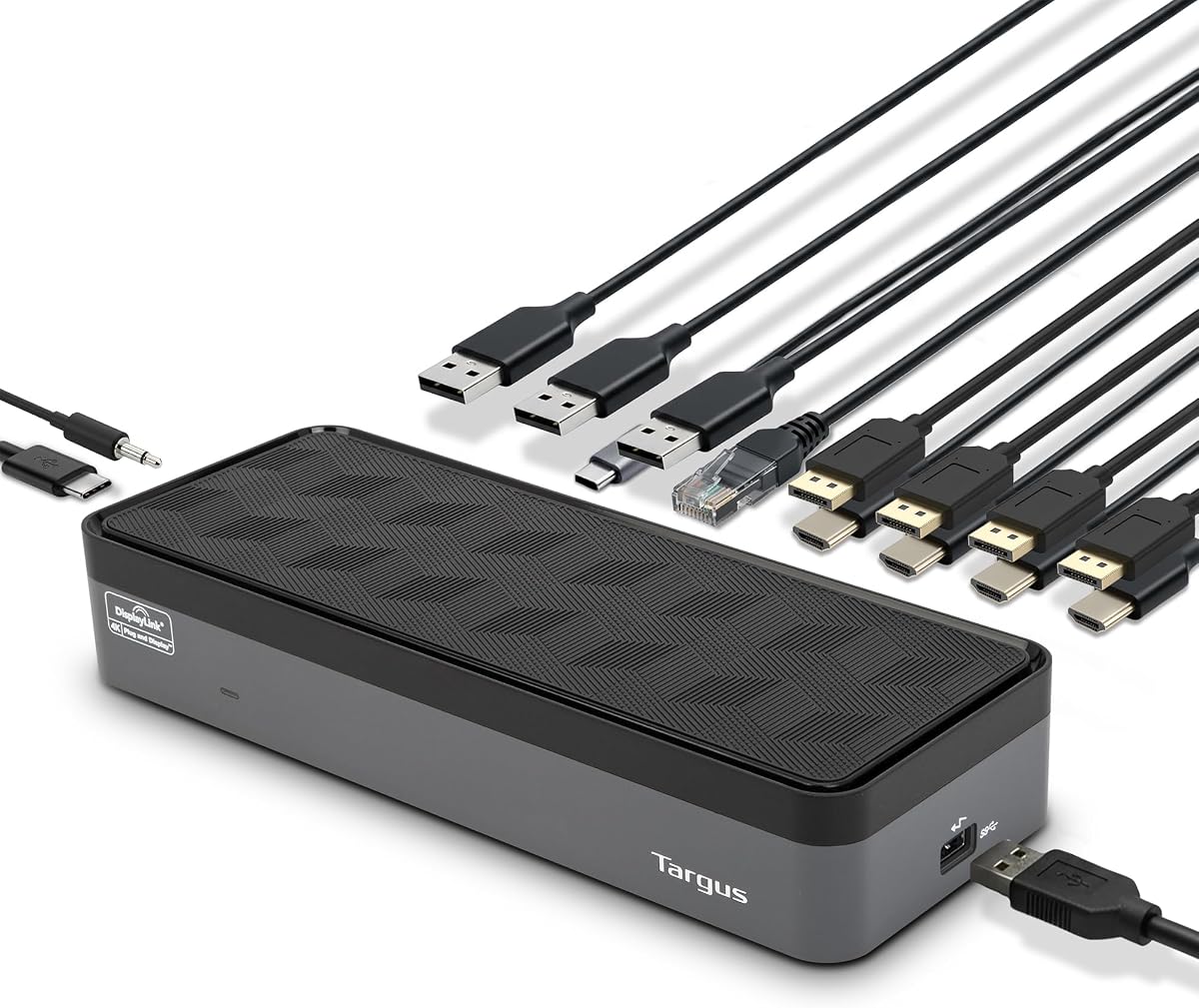
The Targus USB-C Universal Quad 4K Docking Station offers universal compatibility with a wide range of laptops. Rated at 4.4, it supports single 5K or four 4K UHD displays via DisplayPort or HDMI. Its design includes tips for legacy hosts like Dell, HP, and Lenovo.
We may earn a commission when you buy through this link, at no additional cost to you.
This dock features five USB ports including one Type-C and four Type-A, perfect for connecting all peripherals. The 100W Power Delivery keeps your laptop charged while you work. It also includes Gigabit Ethernet and audio ports, making it a complete workstation solution.
Legacy compatibility requires specific power tips which may need separate purchase or configuration. It lacks Thunderbolt 5 support, limiting it to Alt Mode hosts. However, its versatility and ease of use make it ideal for mixed environments with various laptop brands.
Recommended for IT departments needing a single dock for multiple laptop models. It suits professionals requiring crisp displays and reliable connectivity. Verify host compatibility using the provided power tips guide before purchase.
Included adapters and power tips ensure compatibility with most major laptop brands for seamless integration.
USB, Ethernet, and audio ports provide all necessary connections for a fully equipped desk setup.
We may earn a commission when you buy through this link, at no additional cost to you.
Product data for this item is currently unavailable or N/A in the provided sources. We recommend checking the product listing directly for the latest specifications and reviews. Ensuring compatibility with your laptop is crucial before purchasing any docking station.
We may earn a commission when you buy through this link, at no additional cost to you.
This slot in the ranking highlights the importance of verifying product details. Some listings may be new or discontinued. Always review customer feedback and manufacturer descriptions to confirm features match your needs.
Without concrete details we cannot assess pros and cons accurately. Users should look for alternative options with clear specifications or wait for updated product information. Reliable information ensures you get the performance you expect.
For now we suggest focusing on fully documented products. If this dock is relevant to you please check Amazon directly. This ensures you have accurate information for making a sound purchasing decision.
Always check current listings for the latest specs and ensure they match your workstation requirements.
Customer reviews can provide insights into real-world performance and compatibility with various laptops.
We may earn a commission when you buy through this link, at no additional cost to you.
This product entry lacks detailed specifications in our current data. It is important to verify the product status and features directly on the retailer site. Accurate information is essential for choosing the right docking station.
We may earn a commission when you buy through this link, at no additional cost to you.
We recommend checking user reviews and Q&A sections for insights. Some products may have updated firmware or accessories that affect performance. Always ensure the product meets your specific needs before ordering.
Without full details we cannot provide a thorough comparison. Consider alternative options with clearer documentation to avoid potential issues. Reliable information helps ensure your purchase meets your expectations.
Focus on products with clear specs and strong user feedback. This minimizes the risk of compatibility issues and ensures you get the best value for your investment.
Double-check product pages for the latest updates to avoid purchasing outdated or unsupported models.
Matching your laptop's port type and power needs is critical before finalizing your dock purchase.
We may earn a commission when you buy through this link, at no additional cost to you.
This product listing shows N/A in our product data. We suggest visiting the official product page to gather details. Accurate specifications are necessary to confirm if the dock supports your setup.
We may earn a commission when you buy through this link, at no additional cost to you.
Community forums often contain real-world experiences that official listings might miss. Looking for recent discussions can help you understand compatibility issues. Ensure the product has clear return policies in case of issues.
Without verified data we cannot recommend this product specifically. Prioritize options with transparent specs and strong support. This ensures a smooth purchase process and a reliable workstation setup.
Focus on well-documented products for your workstation. Clear information saves time and helps you find the best dock for your needs efficiently.
User discussions can reveal hidden features or issues that official specs might not highlight.
Always check return policies to ensure flexibility if the product does not meet your expectations.
We may earn a commission when you buy through this link, at no additional cost to you.
This item currently lacks details in our provided data. We recommend checking seller ratings and product images on the retailer page. Clear information ensures you make an informed decision without unexpected issues.
We may earn a commission when you buy through this link, at no additional cost to you.
Compare similar models to see which ones meet your needs best. Some products may have updates not reflected in older listings. Ensuring all your requirements are met before purchase is crucial for satisfaction.
Without full specs we cannot assess this dock's value. Opt for options with complete documentation and proven reliability. This reduces risk and ensures your workspace is set up correctly from the start.
Prioritize products with clear features and strong support. This helps you find a dock that fits your workflow perfectly without unnecessary troubleshooting.
High seller ratings often indicate reliable shipping and better customer support for any issues.
Ensure the dock has the exact ports and features you need before placing your order.
We may earn a commission when you buy through this link, at no additional cost to you.
Choosing the right docking station with quad monitor support requires understanding several key factors to ensure compatibility and performance.
Check whether the dock supports four external monitors at 4K resolution. Some docks use DisplayLink technology to exceed native limits on Mac and Windows systems. Ensure the ports match your monitors such as HDMI or DisplayPort.
Verify the number of display outputs and their maximum resolution to avoid mismatched setups.
Confirm that the dock is compatible with your laptop's USB-C or Thunderbolt ports. Some docks work best with specific generations or brands. Read the compatibility list provided by the manufacturer carefully.
Ensure your laptop supports the required video output standards to utilize quad monitors effectively.
Look for a dock with sufficient power delivery to charge your laptop while in use. Most high-quality docks offer 100W or more. This eliminates the need for separate chargers and keeps your desk clean.
Check if power is shared when multiple devices are connected to avoid charging slowdowns.
Consider the variety of ports including USB-A, USB-C, Ethernet, and audio. More ports reduce the need for additional adapters and dongles. This ensures you can connect all peripherals seamlessly.
Ensure the total port count meets your daily workflow needs without clutter.
Some docks require driver installation especially those using DisplayLink technology. Others offer plug-and-play functionality. Consider your comfort with software setup and system updates before choosing.
Driver-free options are easier to maintain but may have limited display capabilities.
Choose a dock with durable materials like aluminum for better heat dissipation. Build quality affects long-term reliability and performance stability. A sturdy dock can withstand daily use and reduce wear.
Look for models with adequate cooling to prevent overheating under heavy loads.
For wired networking, check if the dock offers Gigabit or 2.5GbE Ethernet. Faster Ethernet ensures stable and quick internet connections. This is crucial for remote work and large file transfers.
Prioritize docks with higher speed Ethernet to maintain network efficiency.
Enterprise users should look for docks with security slots like K-slot or Nano lock. These protect your equipment from theft in shared environments. Security features are vital for public or office workspaces.
Ensure the dock includes physical security options if you operate in high-traffic areas.
Start by connecting the dock to a power source and then to your laptop using a compatible cable. Make sure the cable supports data and video transfer for all ports to function correctly.
Install any necessary drivers or software provided by the manufacturer to ensure full functionality. Configure your display settings in your operating system to extend or duplicate screens across monitors.
Regularly clean the dock and ports to prevent dust buildup. Avoid overloading the power delivery to maintain longevity. Store cables neatly to reduce wear and ensure safe operation.
Not every USB-C dock supports four monitors natively. You need a dock with DisplayLink or multiple Thunderbolt ports. Check your laptop's specifications to ensure it can drive multiple displays.
No, some docks offer plug-and-play functionality without drivers. However, many with DisplayLink require drivers for extended displays. Always verify driver needs before purchase to avoid setup issues.
Yes but macOS may limit the number of external displays depending on your model. DisplayLink technology helps overcome these limits for quad setups. Check Mac compatibility carefully before buying.
Most laptops require at least 60W to 100W to charge while working. Docks with 100W or more ensure reliable power delivery. Ensure the dock matches your laptop's charging requirements.
Some docks are compatible with legacy laptops via adapters. Always check the manufacturer's compatibility list for older models. Use the provided adapters to ensure proper connectivity.
Check your laptop's specs for USB-C Alt Mode or Thunderbolt support. This determines its ability to drive multiple external monitors. Verify this before purchasing to avoid compatibility issues.
We reviewed ten docking stations with quad monitor support highlighting their strengths and ideal users. The StarTech Thunderbolt 5 dock leads in premium performance while the TobenONE offers great value.
Prioritize factors like compatibility, power delivery, and port variety based on your workflow needs. Ensuring your laptop matches the dock’s requirements is essential for seamless operation and productivity.
Always check current prices and availability before purchasing as deals may change. This ensures you get the best value and a setup that meets your professional requirements.